
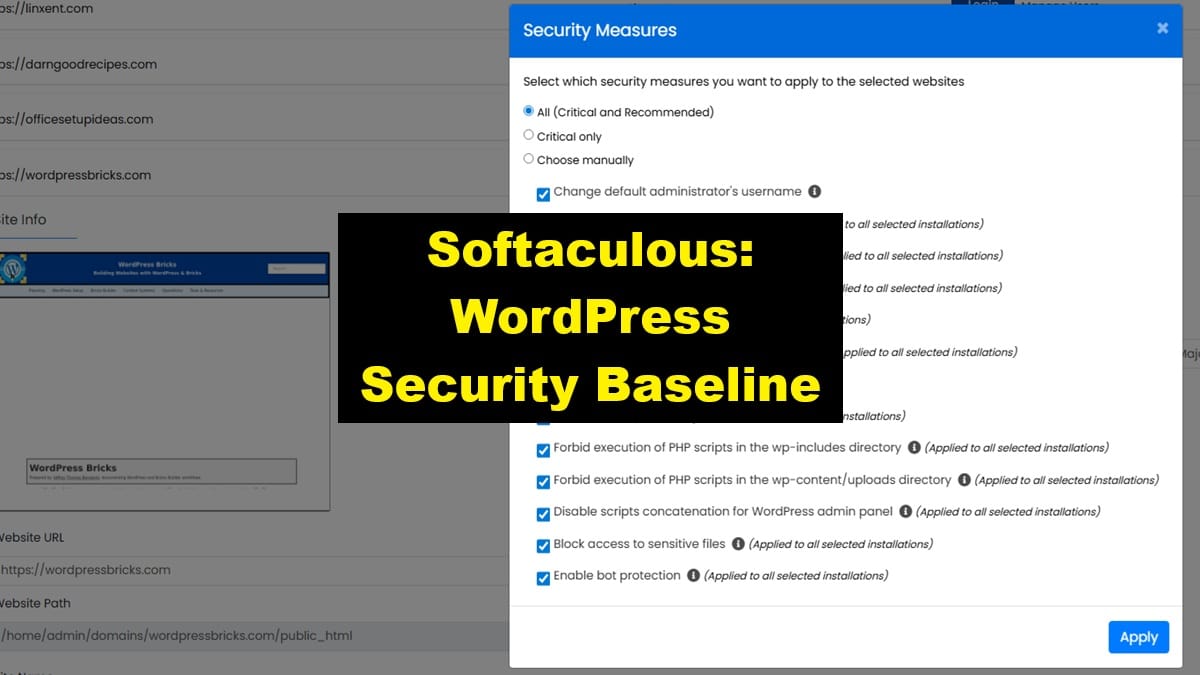
This checklist defines how Softaculous WP Manager is used to apply and verify baseline WordPress security measures on all sites. Its purpose is to ensure a consistent, repeatable security posture immediately after installation, restoration, or import.
These steps apply to all sites: new installs, restored sites, and imported sites.
Checklist Objective
Apply Softaculous WP Manager security measures so WordPress meets baseline security expectations before plugins, builders, or content workflows proceed.
Preconditions
- WordPress is installed and accessible
- WordPress Setup 01 — Baseline Installation & Core Settings is completed and approved
- Softaculous is available
Checklist Steps — Apply WP Security Measures
- Open WordPress Manager in Softaculous.
- Log in to DirectAdmin
- Go to Extra Features → Softaculous Auto Installer
- Click the WordPress Manager icon
- Select and expand the target domain
- Open Security Measures.
- Scroll to the bottom of the expanded site panel
- Click Security Measures
- Select recommended security settings.
- Select All (Critical and Recommended)
- Adjust specific options intentionally.
- Uncheck “Block Author Scans”
- If “Change default administrator username” is already applied, it may auto‑uncheck — this is expected
- Apply changes and re‑scan.
- Tap Apply to apply the selected security measures
- Reopen Security Measures to verify no critical items remain
Checklist Steps — Validation
- Confirm WordPress admin loads correctly
- Confirm frontend loads without errors
- Verify no critical security warnings remain in WP Manager
Manual Fallback (If WP Manager Is Unavailable)
- Apply user access rules using WordPress — User Roles & Capability Assignments
- Confirm strong passwords are enforced
- Manually validate core security‑related settings
Required Output
- Baseline WordPress security measures applied
- Critical and recommended items resolved
- Intentional exclusions documented
- Site cleared for plugin and builder configuration
Pause & Lock
Once approved, WP Manager security settings become locked inputs for all subsequent WordPress configuration and operational workflows.
Outputs from this checklist are required context for WordPress Setup 02 — User Roles & Security Basics .