
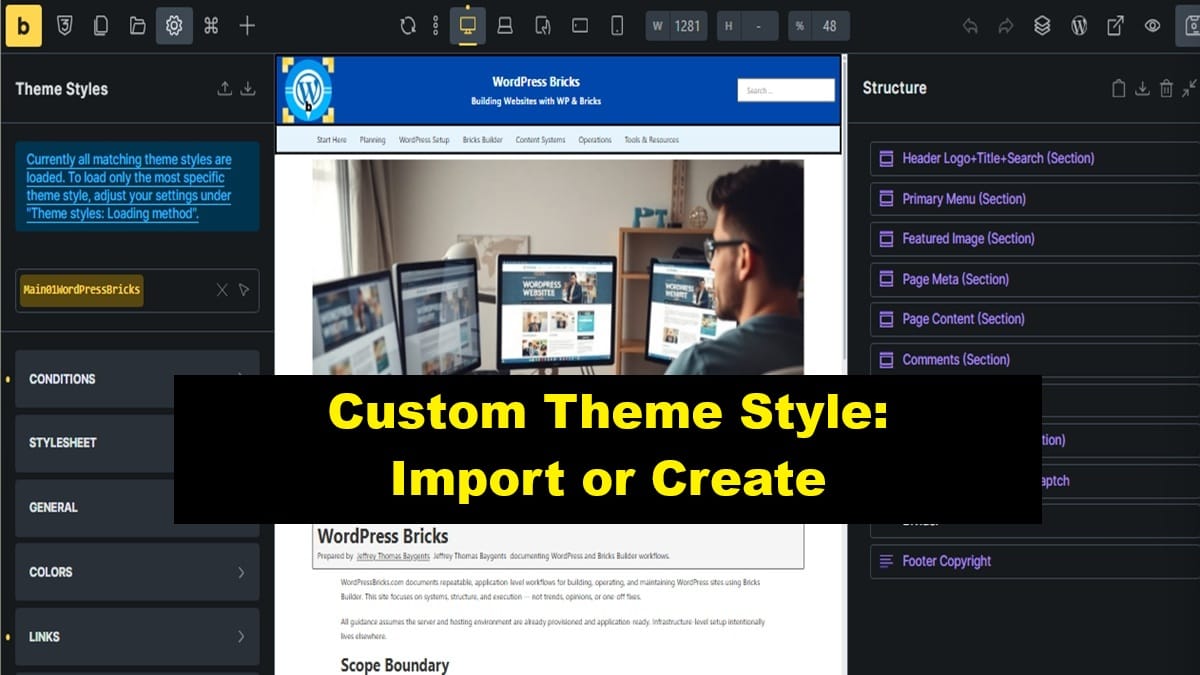
This checklist defines how to import or create a Bricks custom theme style and ensure it is saved for reuse.
Having a custom theme style prevents styling work from being overwritten when Bricks default styles are updated and allows consistent reuse across sites.
Checklist Objective
Ensure a Bricks custom theme style exists, is selected, and is exported so it can be reused or re‑imported in the future.
Preconditions
- Bricks — Breakpoints Definition Checklist is completed and approved
- Bricks — Global Styles System Checklist is completed and approved
- Bricks Builder parent theme is installed and licensed
- Bricks child theme is active
Checklist Steps — Import or Create Custom Theme Style
1. Open Theme Styles interface
- From WP‑Admin, go to Bricks → Templates
- Open the previously created Test template
- Tap Edit with Bricks
- In the top‑left toolbar, click the Manage icon (cogwheel)
- Click Theme Styles
- Click Select: Theme Style
2. Choose one option below
Option 1 — Import an existing custom theme style (preferred)
- Tap the down arrow icon to the right of the Theme Styles heading
- Import a previously saved theme style export for this domain
- Example naming: Main01…
- After import, review any items flagged with custom settings
- Adjust names or values if the style was imported from another domain
Option 2 — Create a new custom theme style
- In the Select: Theme Style field, enter a new name:
- Format: Main01<domain name without TLD>
- Example: Main01Baygents
- If multiple TLDs exist, include TLD: Main01BaygentsCom, Main01BaygentsOrg
- Tap Enter on the keyboard
3. Confirm custom theme style is selected
- Ensure the custom theme style name appears highlighted
- This indicates the style is currently active
4. Save the custom theme style
- In the top‑right toolbar, click Save
- This action saves the custom theme style on this site
Checklist Steps — Export New Custom Theme Style
5. Export the custom theme style
- If you created a new theme style, it must be exported
- If the style was imported from another site, exporting it again saves a copy specific to this site
- From the Theme Styles heading, tap the up arrow icon (Export)
- Save the exported file locally for this domain’s reference
Required Output
- Custom Bricks theme style exists
- Custom theme style is selected and active
- Theme style exported and saved locally
- Theme style ready to be reused or re‑imported in the future
Pause & Lock
The custom Bricks theme style is now established and preserved. Do not proceed with required theme styles or templates until this checklist is complete.
Proceed to: Bricks — Required Theme Styles & System Config